Build guide
Building the WetterCube
The WetterCube is the first smart weather display of the family: an ESP32-C3 with a 1.54-inch colour display and a touch button. The display is wired up; only a few wires are needed.
Important: WetterCube is a software project. I provide the software (firmware); you do the building yourself: you buy the matching board (for WetterCube and WetterCubePlus also the display), flash the firmware and design a case to your own taste. I try to offer matching cases for the individual cubes, but the focus is on the software. Finished devices are not offered. You find short build guides under Build guide.
Note on assembly: The WetterCube is aimed at people with some knowledge of electronics: during assembly, cables have to be crimped and parts soldered. If you do not want that, the WetterCube Fusion is the better choice. That is why, for the newer devices (Fusion and Next), I rely on complete boards with an integrated display: building is easy even for people who know nothing about wiring up an ESP32 and the like.
What you need
| Part | Type |
|---|---|
| Microcontroller | ESP32-C3 Super Mini |
| Display | ST7789, 1.54", 240×240 pixels, SPI |
| Button | TTP223 (capacitive touch sensor) |
| Power | USB-C, an ordinary 5 V USB power supply is enough |
| Case | optional, see below |
Assembly
Wire the display and the touch button to the ESP32-C3 Super Mini using this pin assignment:
| Function | GPIO |
|---|---|
| TFT MOSI (SPI) | 20 |
| TFT SCLK (SPI) | 21 |
| TFT CS | 6 |
| TFT DC | 7 |
| TFT RST | 10 |
| TFT Backlight | 5 |
| TTP223 (Touch-Taste) | 3 |
A wiring diagram is in the project README. The backlight is controlled by PWM (brightness, dimming, night mode). A very thin or long USB cable can cause dropouts when transmitting over Wi-Fi.
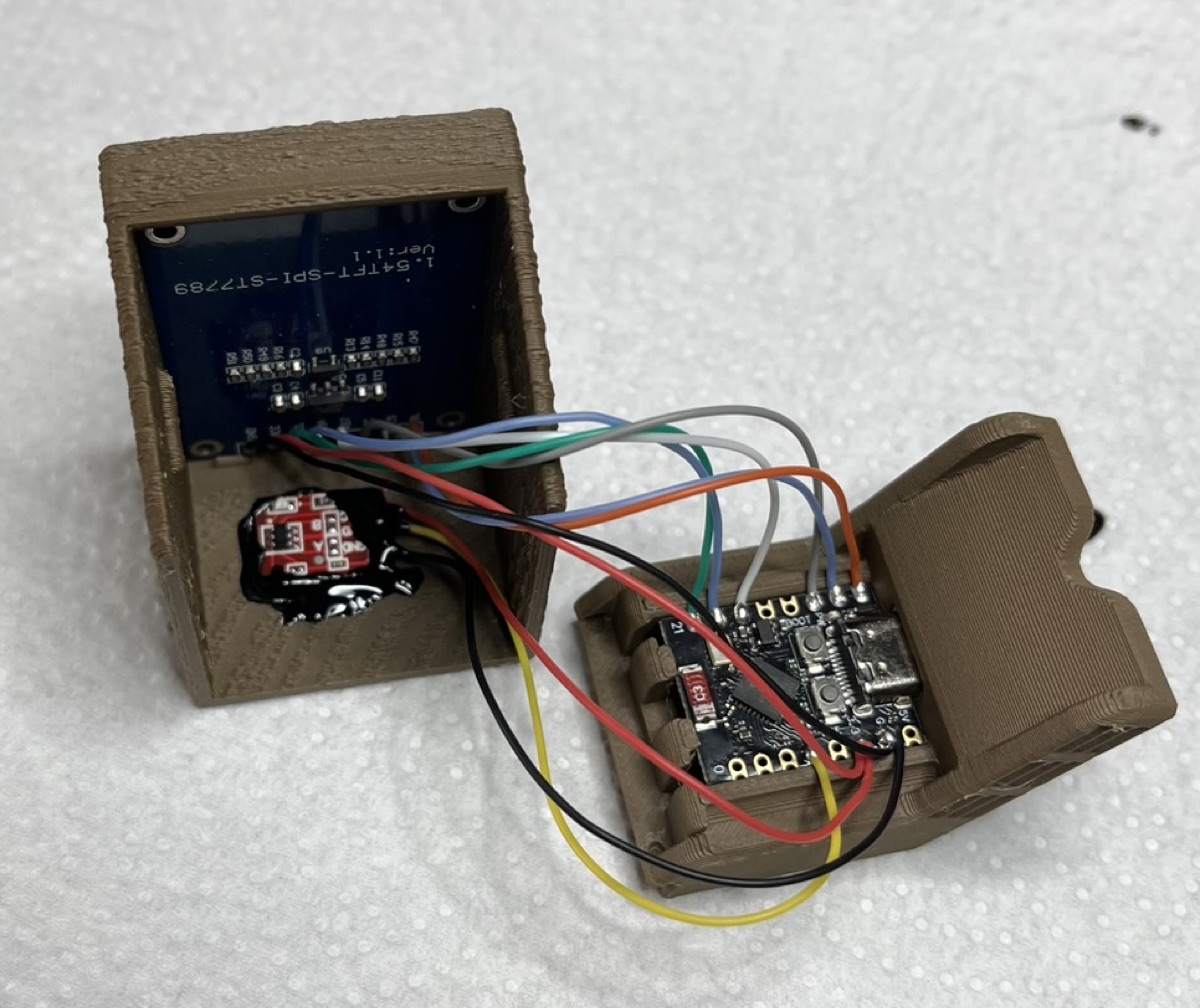
Tip: Glue the touch button (TTP223) to the inside of the top of the case, for example with some liquid electrical tape or silicone.
Flash the firmware
- Open the web installer (Google Chrome or Microsoft Edge only, because of WebSerial).
- Connect the board to the computer via USB-C, choose “Install” and follow the instructions.
Careful: the installation erases the flash and with it the Wi-Fi password, location and settings. Afterwards the cube is set up again.
First setup
- On first start (or if the Wi-Fi is unreachable) the display shows “Portal: WetterCube-Setup”. The cube now opens its own Wi-Fi “WetterCube-Setup” (no password).
- On your phone (or PC) open the Wi-Fi settings, look for “WetterCube-Setup” in the list of available networks and connect to it. If the phone says that the network has no internet access, stay connected anyway.
- The browser now opens the cube’s setup portal by itself (on iOS and Android usually automatically). If that does not happen, open
http://192.168.4.1in the browser. - There, choose your home Wi-Fi from the list and enter the password.
- Enter the location (city) without umlauts (for example
Munchen,Koln). - “Speichern & Verbinden” (save and connect). The cube restarts, connects to your home Wi-Fi and loads the data. Afterwards connect your phone to your normal Wi-Fi again (this usually happens by itself).
After connecting, the boot screen shows the IP address for 5 seconds; afterwards the cube is reachable at http://wettercube.local. If the Wi-Fi connection fails at startup, it opens the setup portal again after up to 15 seconds; the saved credentials are kept.
Case
The cube by Keralots on Bambu MakerWorld is recommended: Simple Print Monitor – ST7789 1.54" Display Case.
What next
Language and region: The WetterCube project is currently only available in German. Because the weather data for warnings, pollen forecast and bio-weather comes from the German Weather Service (DWD), it currently only works completely in Germany. A translation into English and weather information usable worldwide are planned, but there is no fixed date yet.